Dev:Patient statistics: Difference between revisions
Jump to navigation
Jump to search
No edit summary |
|||
| Line 1: | Line 1: | ||
== | == Patient statistics report - details == | ||
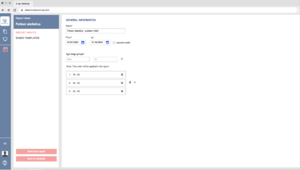
The Report Page is designed to display the selected report's details and offer users the ability to interact with report inputs, download the report, save it as a template, and manage saved templates. The page includes a left sidebar featuring the report name and two tabs: "Report Inputs" and "Saved Templates." | |||
====Page Layout==== | |||
Left Sidebar: | |||
*Positioned on the left side of the page. | |||
*Contains the header displaying the name of the current report. | |||
*Includes two tabs: | |||
**"Report Inputs": For configuring the report parameters. | |||
**"Saved Templates": For managing saved report templates. | |||
*Download Report Button: | |||
**Located at the bottom of the "Report Inputs" section. | |||
**Clicking this button generates the report based on the configured inputs and initiates a download of the report file (always Excel). | |||
Save as a Template Button: | |||
*Positioned below the "Download Report" button. | |||
*Allows users to save the current input configuration as a template for future use. | |||
==== Report inputs ==== | |||
*Name, mandatory, free text -Allows users to enter the name to be included in the report. | |||
*Date Picker (From-To): | |||
*Enables users to select desired time frame. | |||
*Checkbox, current month, if selected To field is disabled | |||
*Age range groups From and To "+" Functionality: | |||
*+ button allows users to include selected age range in the report or by clicking on it | |||
*Added Age range Display: | |||
**The selected age ranges are displayed as cards in a draggable list. | |||
**Each card should clearly display the selected age range along with the "X" button for removal. [[File:Patient statistics report inputs.png|border|left|thumb]] | |||
==== Saved templates ==== | |||
Saved templates list: | |||
* Displays a list of saved report templates. | |||
* Each entry includes the template name and potentially a preview of the configured inputs. | |||
* Users can click on an entry to load and edit the template. | |||
* Update template button allows user to update any changes made to chosen report | |||
* Delete template button deletes selected template | |||
Report Data Inputs Section | |||
* Contains input controls for configuring report parameters, similar to the Report Inputs Page. | |||
* Allows users to customize the report by adjusting input values. | |||
Scheduling and sending section | |||
Includes options for scheduling the report sending and adding recipients. | |||
* Enables users to toggle scheduling for report sending. | |||
* When enabled, additional options for scheduling become available. | |||
* Each added email is displayed as a tag with an "X" button for removal. | |||
* Users can select from various recurrency options: weekly, monthly, yearly, or none with specific time for the scheduled report to be sent. | |||
==== Functionality ==== | |||
Input Validation | |||
* Implement validation to ensure mandatory fields are filled | |||
* Implement validation to ensure that date ranges are logical | |||
* Implement validation that entered emails are in a proper email format before adding them. | |||
* If user enters any input and tries to exit the page add a popup "You have unsaved work on this page. Leaving now will result in the loss of your changes. Are you sure you want to leave without saving? Yes/No" | |||
Revision as of 13:30, 4 September 2023
Patient statistics report - details
The Report Page is designed to display the selected report's details and offer users the ability to interact with report inputs, download the report, save it as a template, and manage saved templates. The page includes a left sidebar featuring the report name and two tabs: "Report Inputs" and "Saved Templates."
Page Layout
Left Sidebar:
- Positioned on the left side of the page.
- Contains the header displaying the name of the current report.
- Includes two tabs:
- "Report Inputs": For configuring the report parameters.
- "Saved Templates": For managing saved report templates.
- Download Report Button:
- Located at the bottom of the "Report Inputs" section.
- Clicking this button generates the report based on the configured inputs and initiates a download of the report file (always Excel).
Save as a Template Button:
- Positioned below the "Download Report" button.
- Allows users to save the current input configuration as a template for future use.
Report inputs
- Name, mandatory, free text -Allows users to enter the name to be included in the report.
- Date Picker (From-To):
- Enables users to select desired time frame.
- Checkbox, current month, if selected To field is disabled
- Age range groups From and To "+" Functionality:
- + button allows users to include selected age range in the report or by clicking on it
- Added Age range Display:
- The selected age ranges are displayed as cards in a draggable list.
- Each card should clearly display the selected age range along with the "X" button for removal.

Saved templates
Saved templates list:
- Displays a list of saved report templates.
- Each entry includes the template name and potentially a preview of the configured inputs.
- Users can click on an entry to load and edit the template.
- Update template button allows user to update any changes made to chosen report
- Delete template button deletes selected template
Report Data Inputs Section
- Contains input controls for configuring report parameters, similar to the Report Inputs Page.
- Allows users to customize the report by adjusting input values.
Scheduling and sending section Includes options for scheduling the report sending and adding recipients.
- Enables users to toggle scheduling for report sending.
- When enabled, additional options for scheduling become available.
- Each added email is displayed as a tag with an "X" button for removal.
- Users can select from various recurrency options: weekly, monthly, yearly, or none with specific time for the scheduled report to be sent.
Functionality
Input Validation
- Implement validation to ensure mandatory fields are filled
- Implement validation to ensure that date ranges are logical
- Implement validation that entered emails are in a proper email format before adding them.
- If user enters any input and tries to exit the page add a popup "You have unsaved work on this page. Leaving now will result in the loss of your changes. Are you sure you want to leave without saving? Yes/No"